User Tutorial
Master your mornings with this quick guide to using WakeUpWars.
How to Add a Friend, Form a Group, and Create a Group Challenge
Follow these steps to compete with your friends!
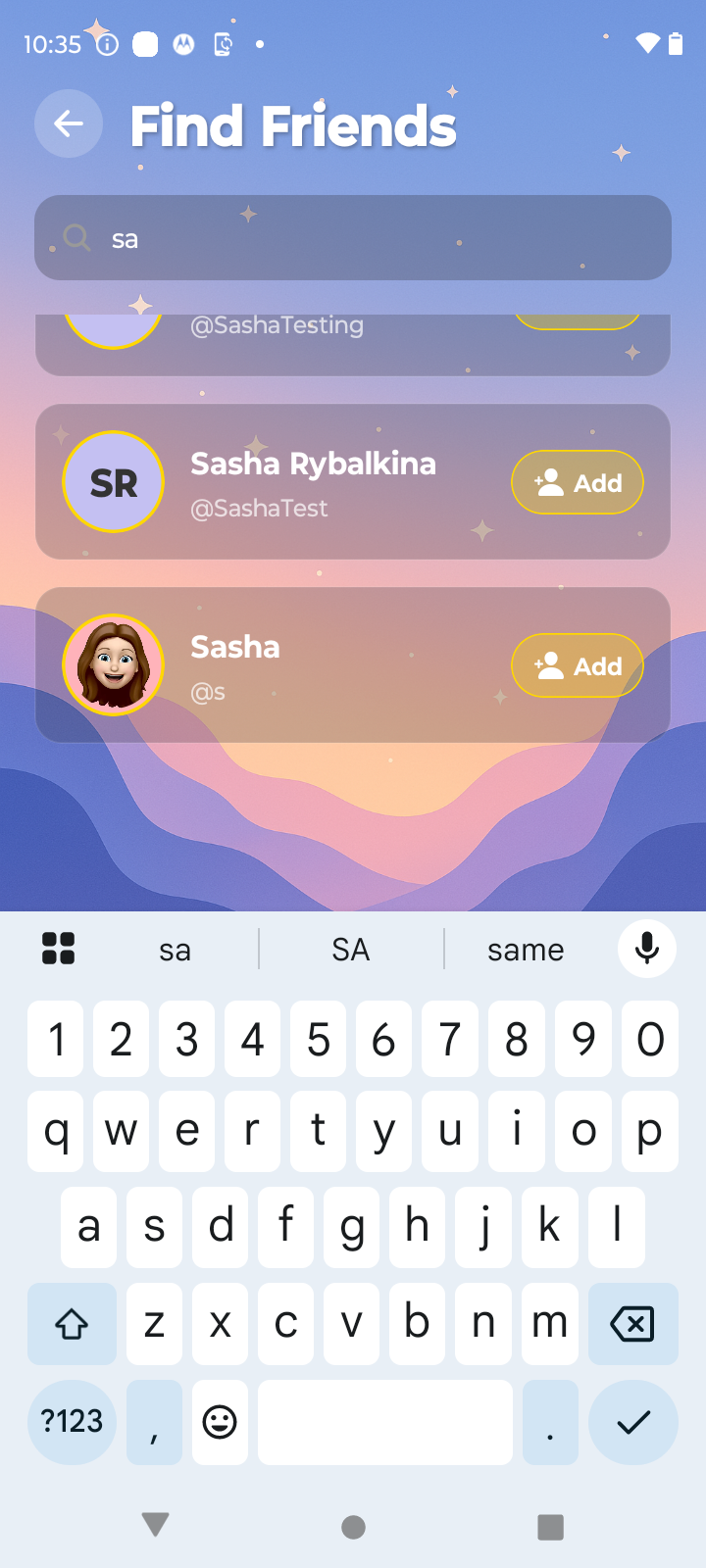
Navigate to the "Profile" page and click the "Friends" button. Then click the button to add a new friend and search them by name or username.

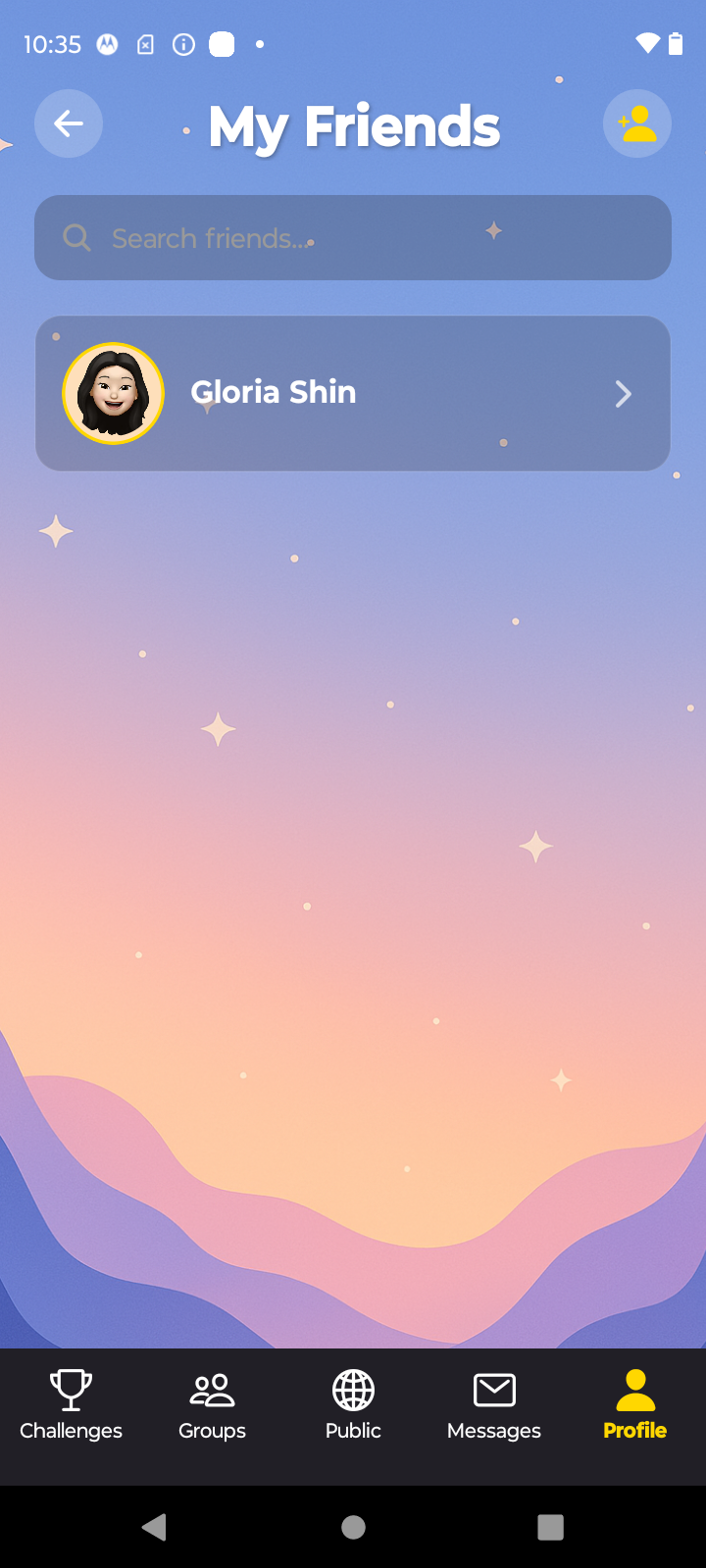
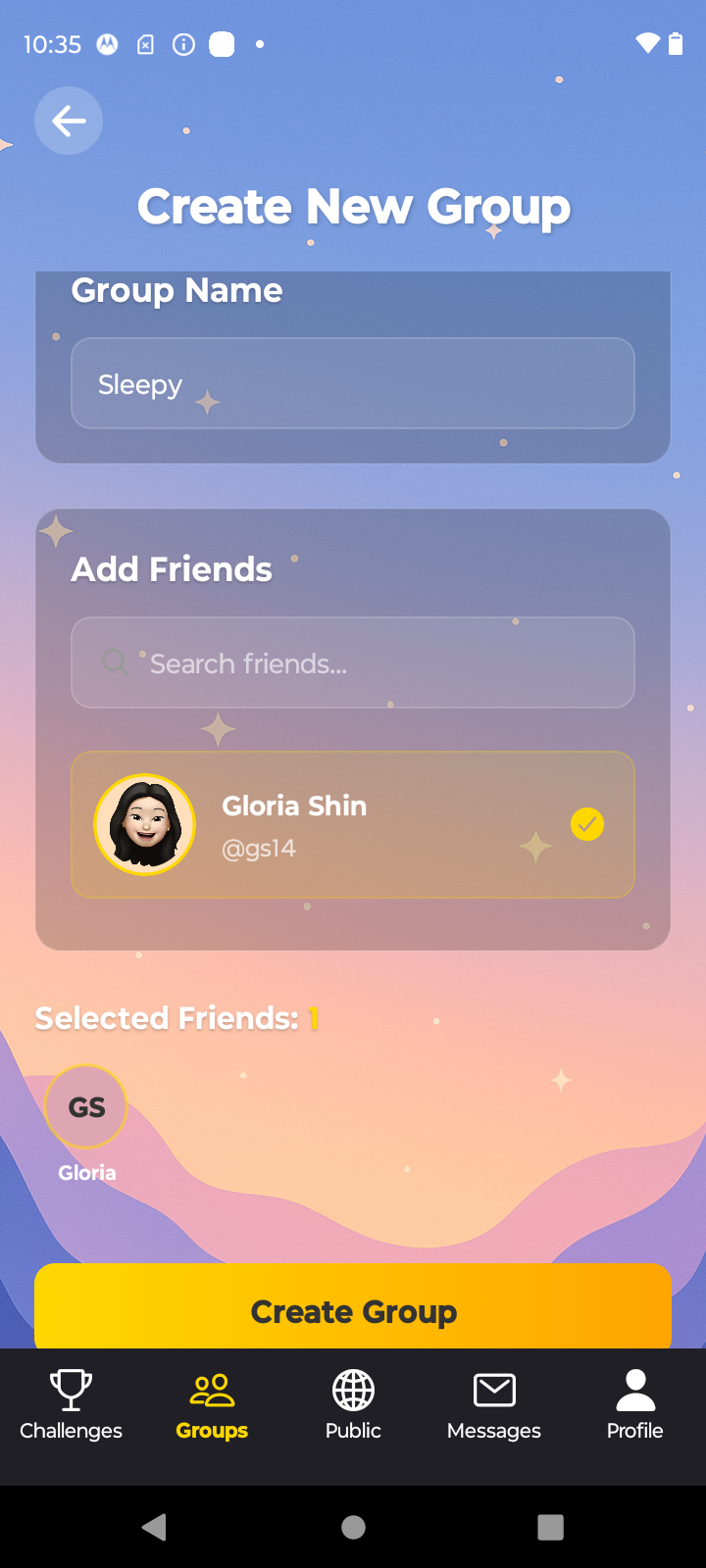
Once you have some friends, you can create a group by navigating to the "Groups" page and hitting the + button. Give the group a name and select the friends you wish to include, then click create and wait for their response.
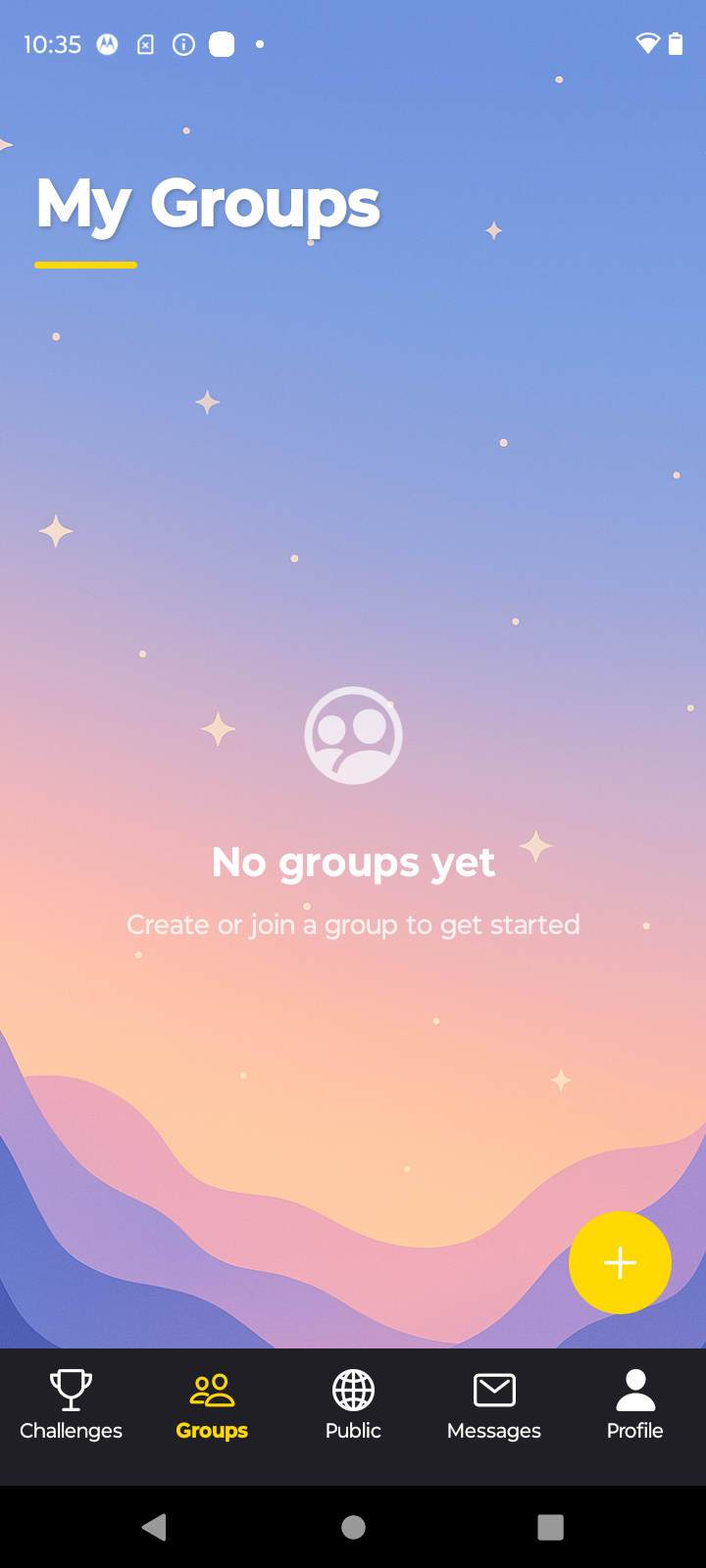

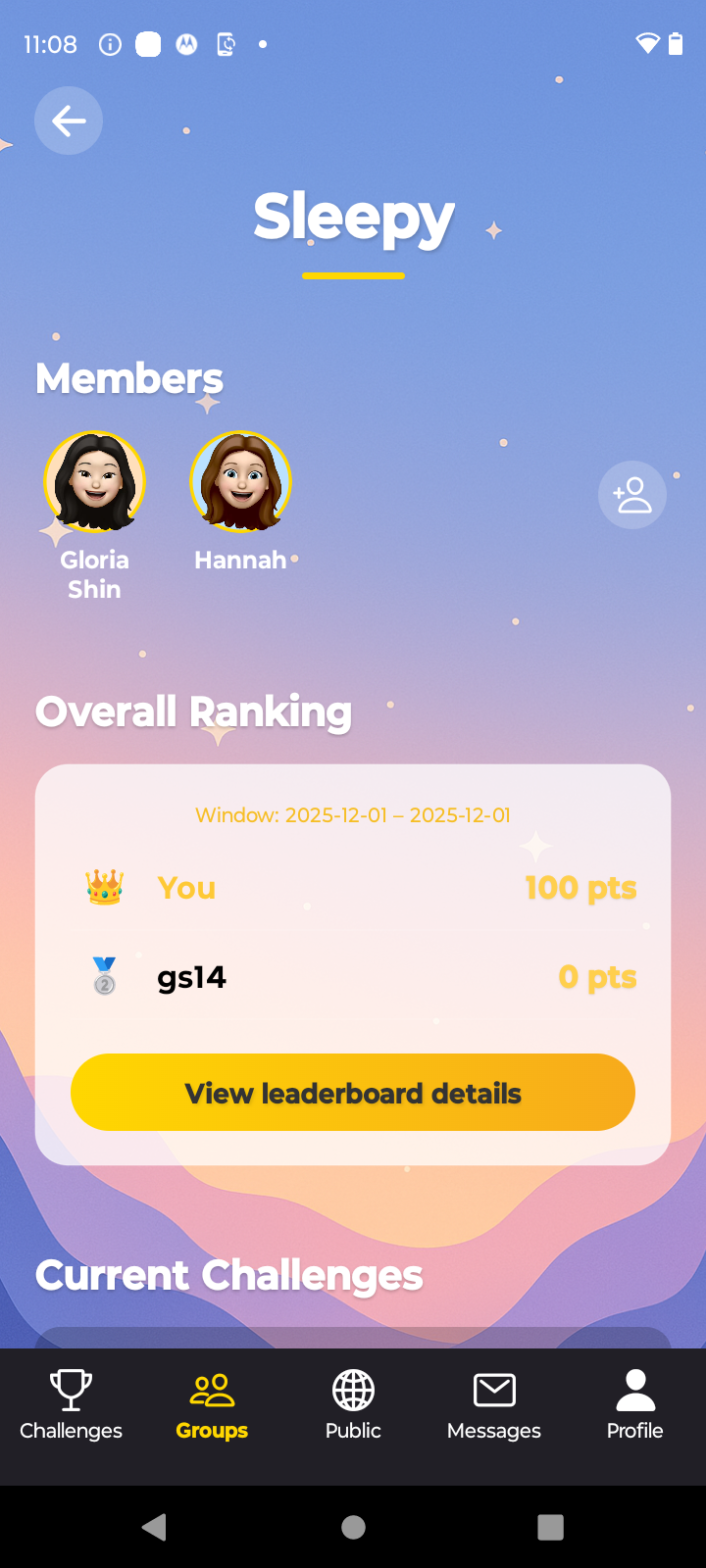
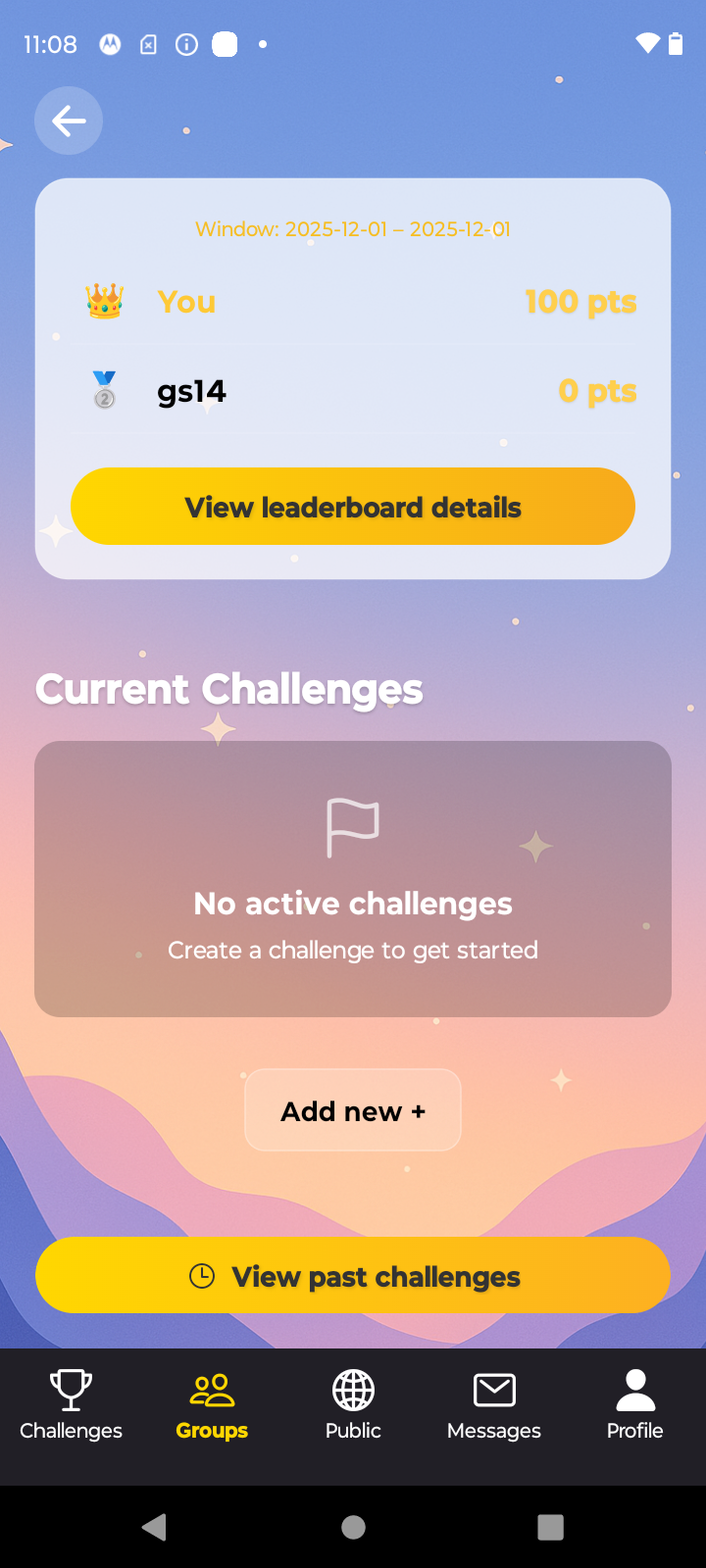
Once you have a group, you can initiate a group challenge by navigating to the "Groups" page, clicking the desired group to go to the group details page, and then clicking "add new" under Current Challenges.
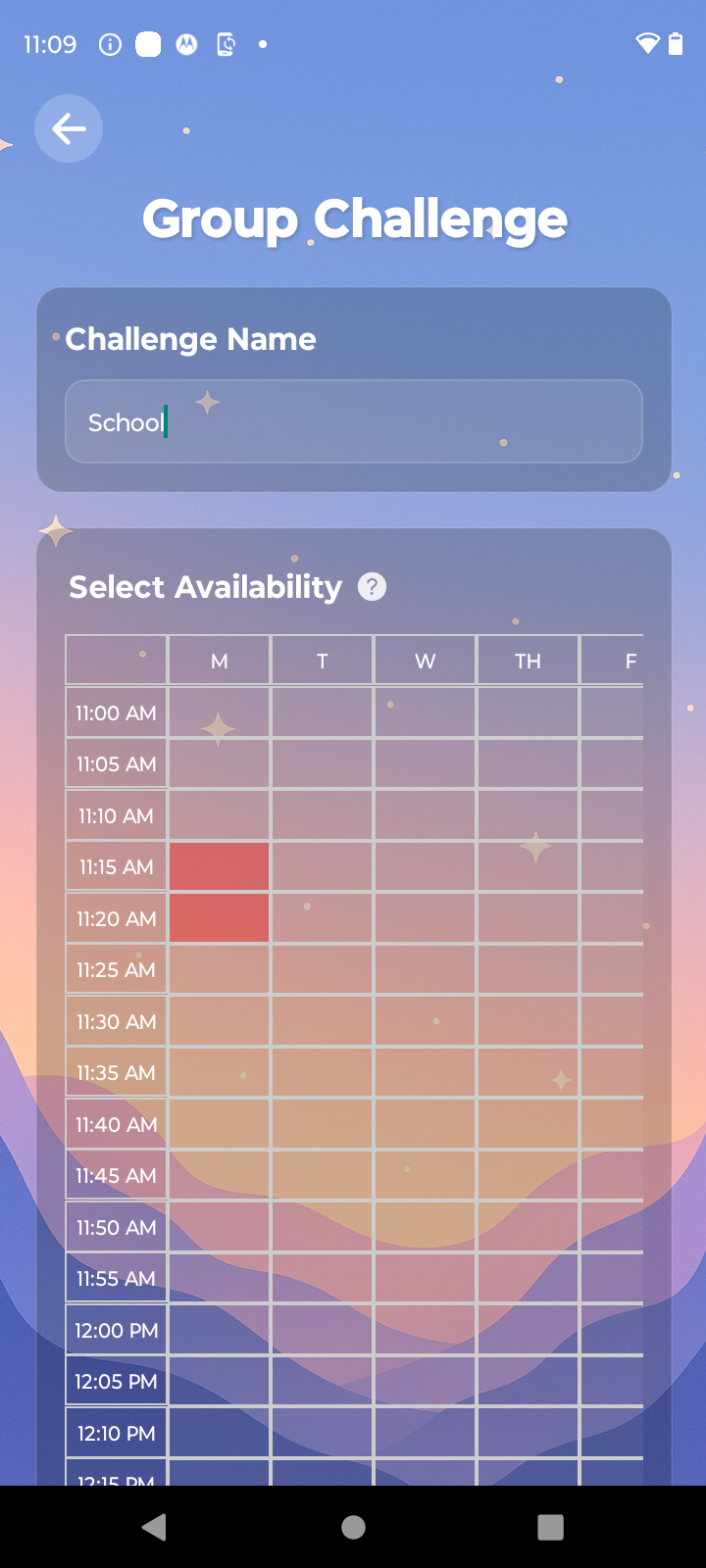
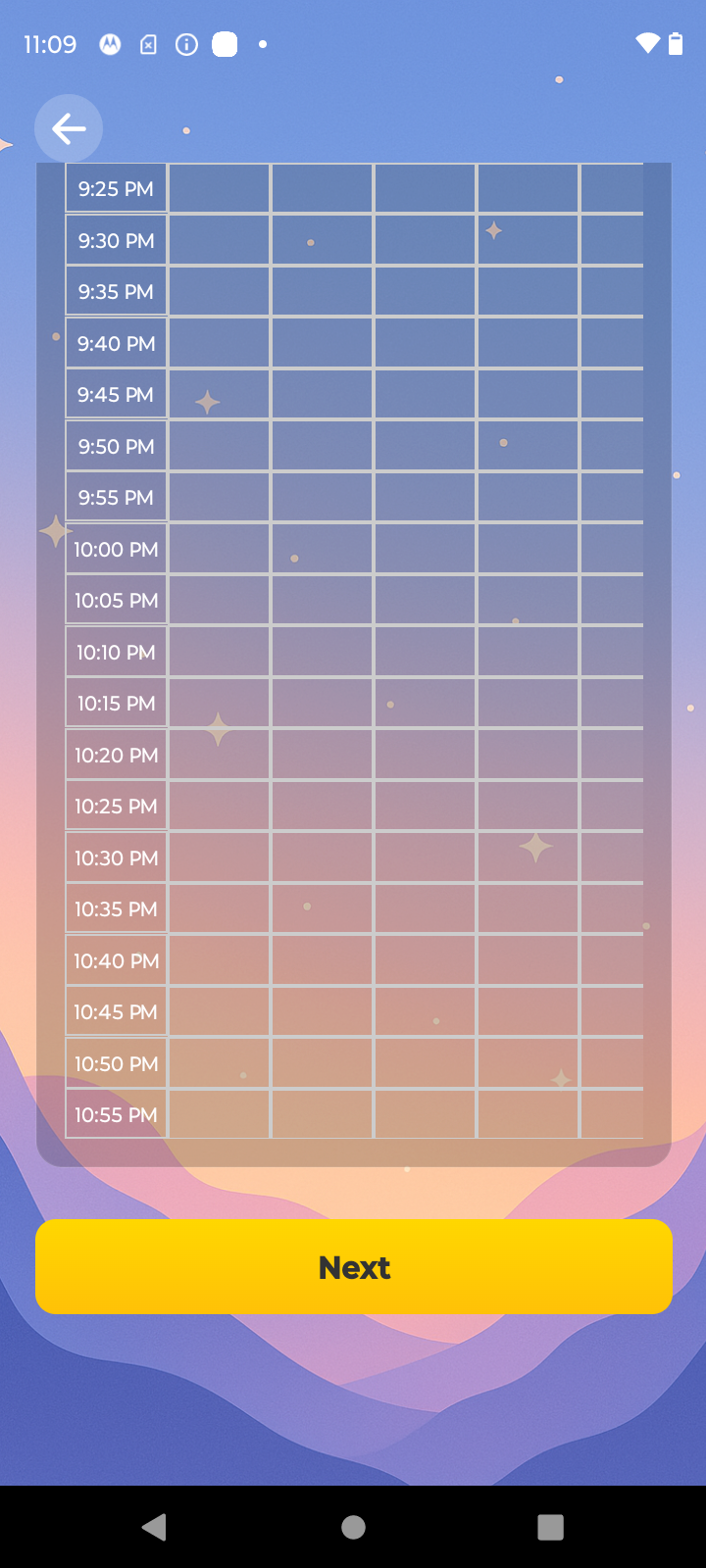
After clicking "add new," make a name for the challenge and select all time slots in the availability chart below that you would be available to schedule an alarm for the challenge. For example, selecting the 8am slot on Monday means that you are available to have an alarm scheduled at 8am on Mondays. Each group member will be able to edit this chart with their own availability once you send the challenge invite, and the final schedule will be decided from there.
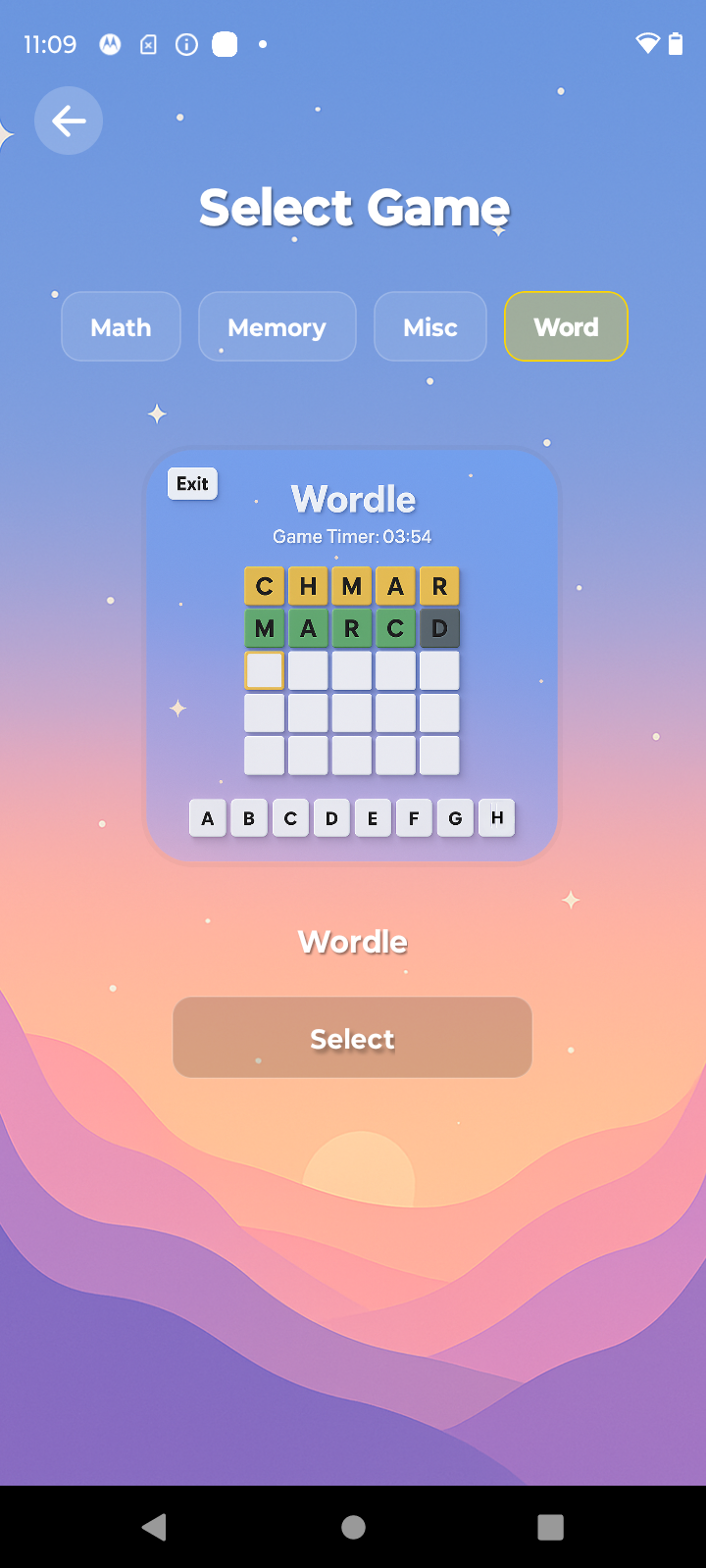
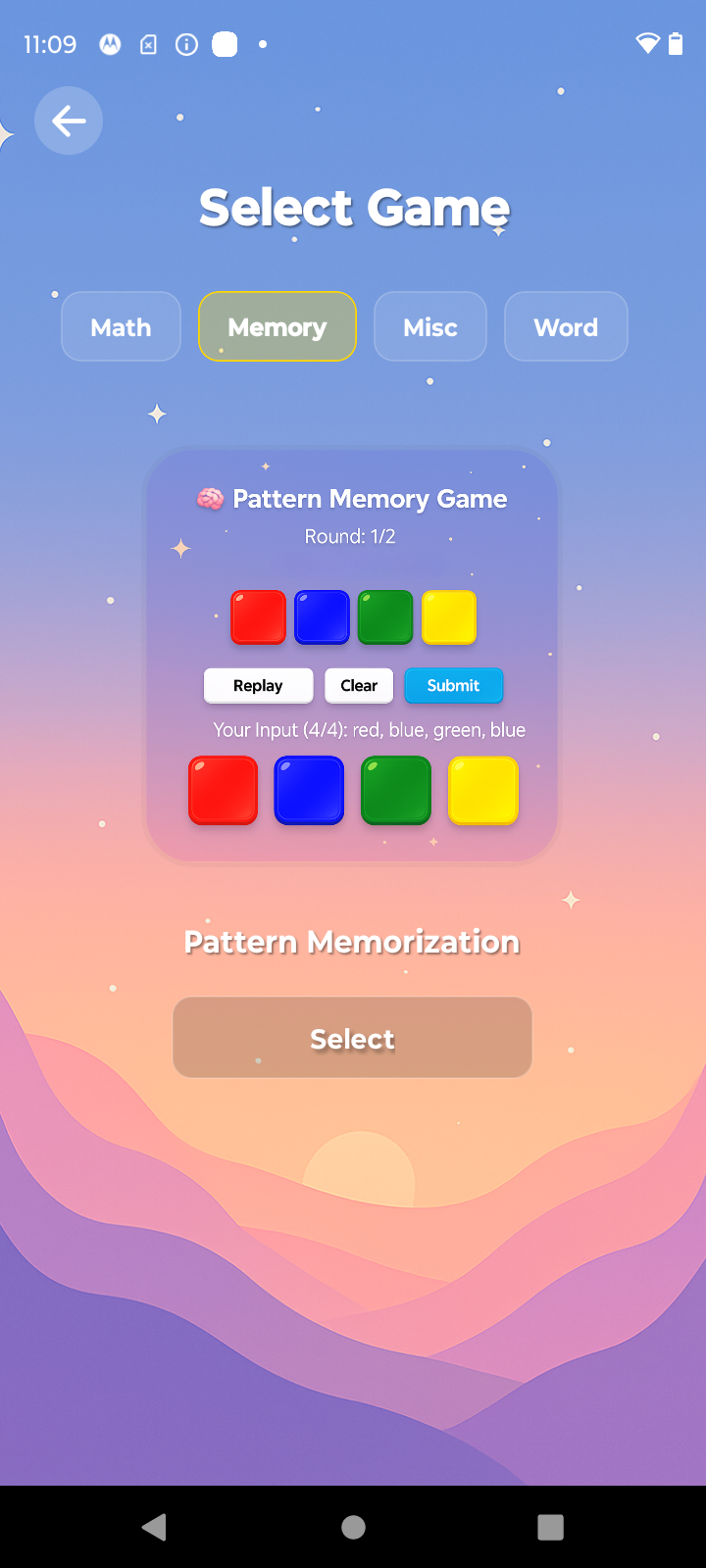
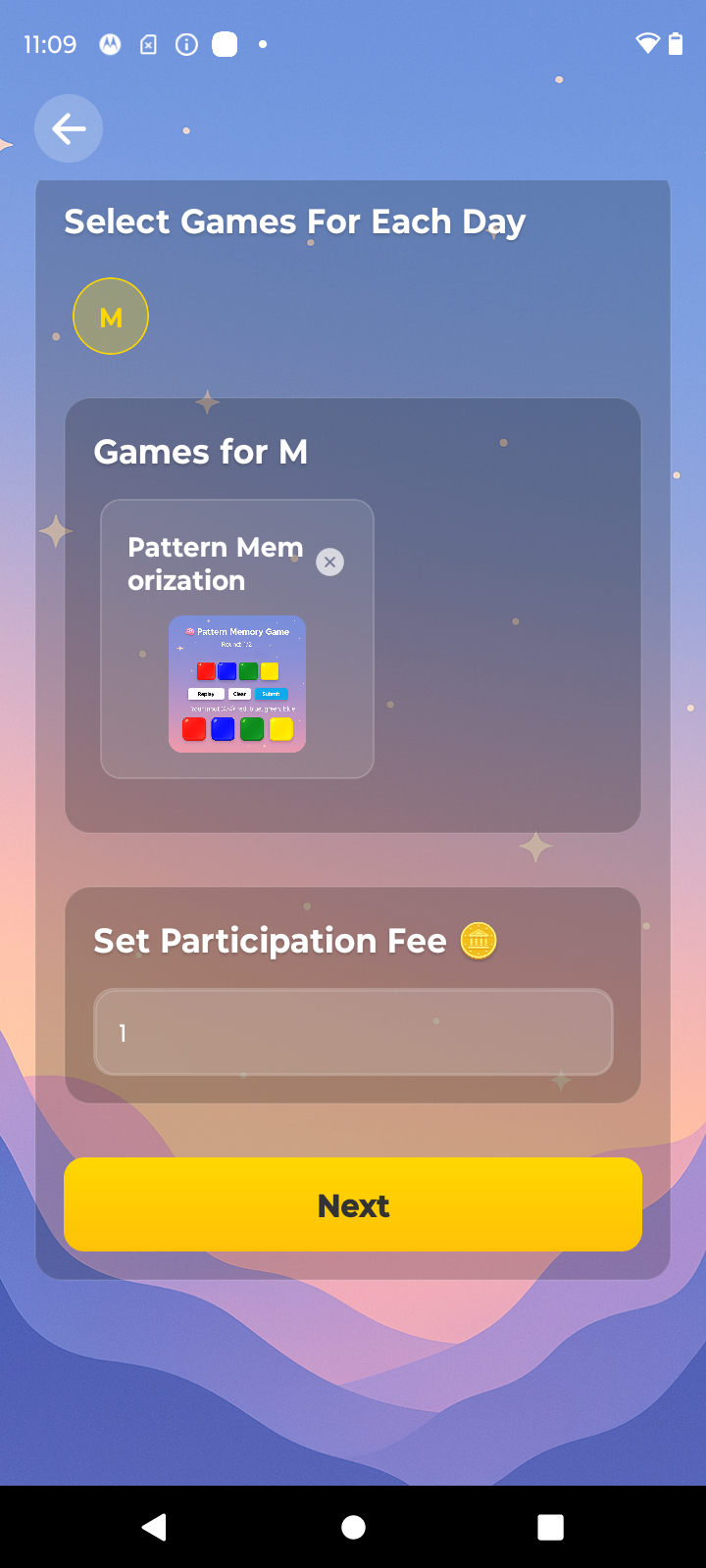
After selecting your availability, choose a game to play for each day of the challenge. We currently have 4 game categories (Math, Word, Memory, and Misc) and 1 game within each category (Sudoku, Wordle, Pattern Memorization, and Typing Race, respectively). You can also set a participation fee for the challenge if desired. Each group member will have to pay the fee if they wish to enter the challenge, and all the coins will go to the challenge winner when the challenge ends. Set this to 0 if you don't want to charge a fee.
Lastly, select the dates you want the challenge to start and end. You can then hit "create challenge" and invites will be sent to all group members to join the challenge.
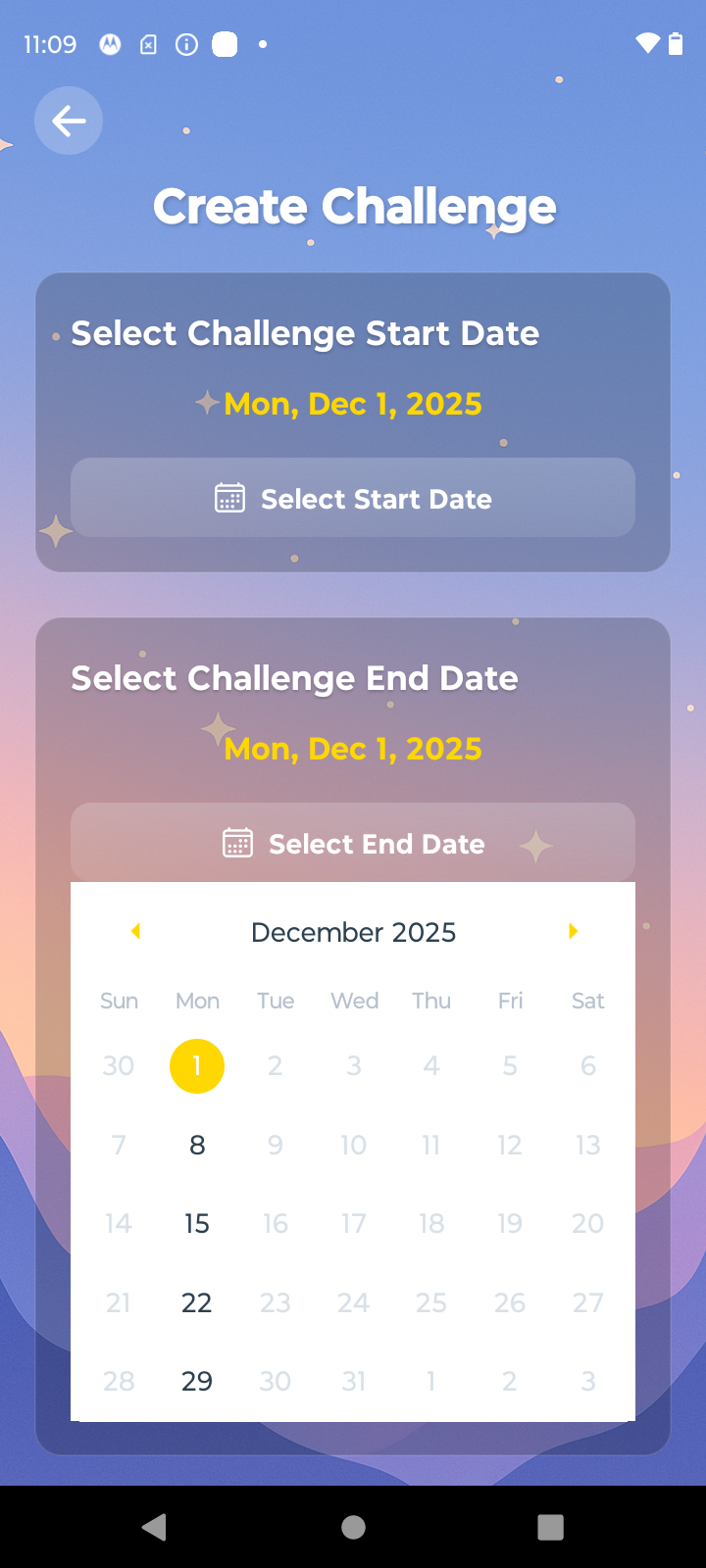
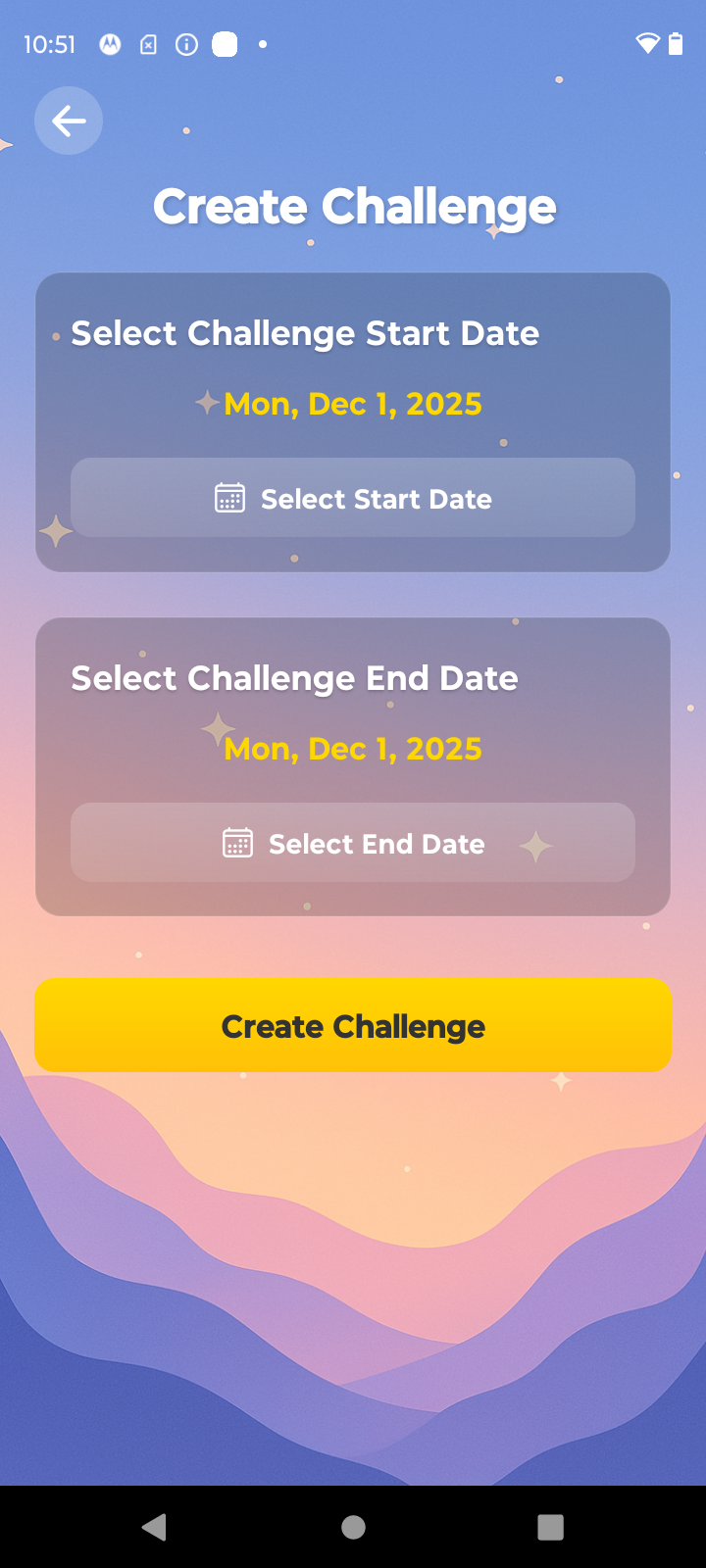
Once at least one other group member has joined the challenge by entering their availability into the chart, you can click "finalize challenge" to finalize the schedule and officially start the challenge. On a given day, if everyone has availability for the same alarm time, the system will choose that alarm time for everyone that day, and you all will compete in the multiplayer version of that day's game. Otherwise, the system will choose an alarm time for each person that fits within their availability, and each person will play the singleplayer version of that day's game at their scheduled alarm time.
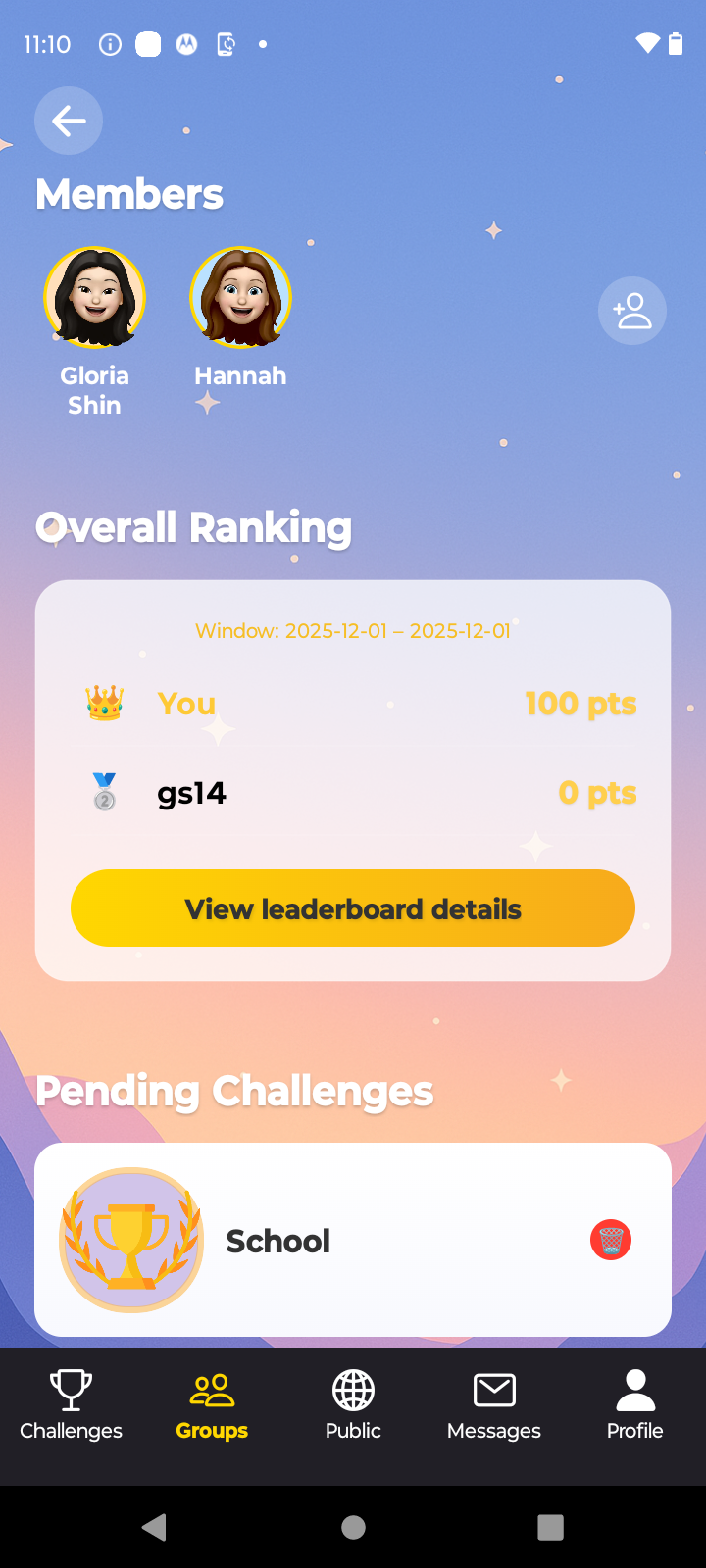
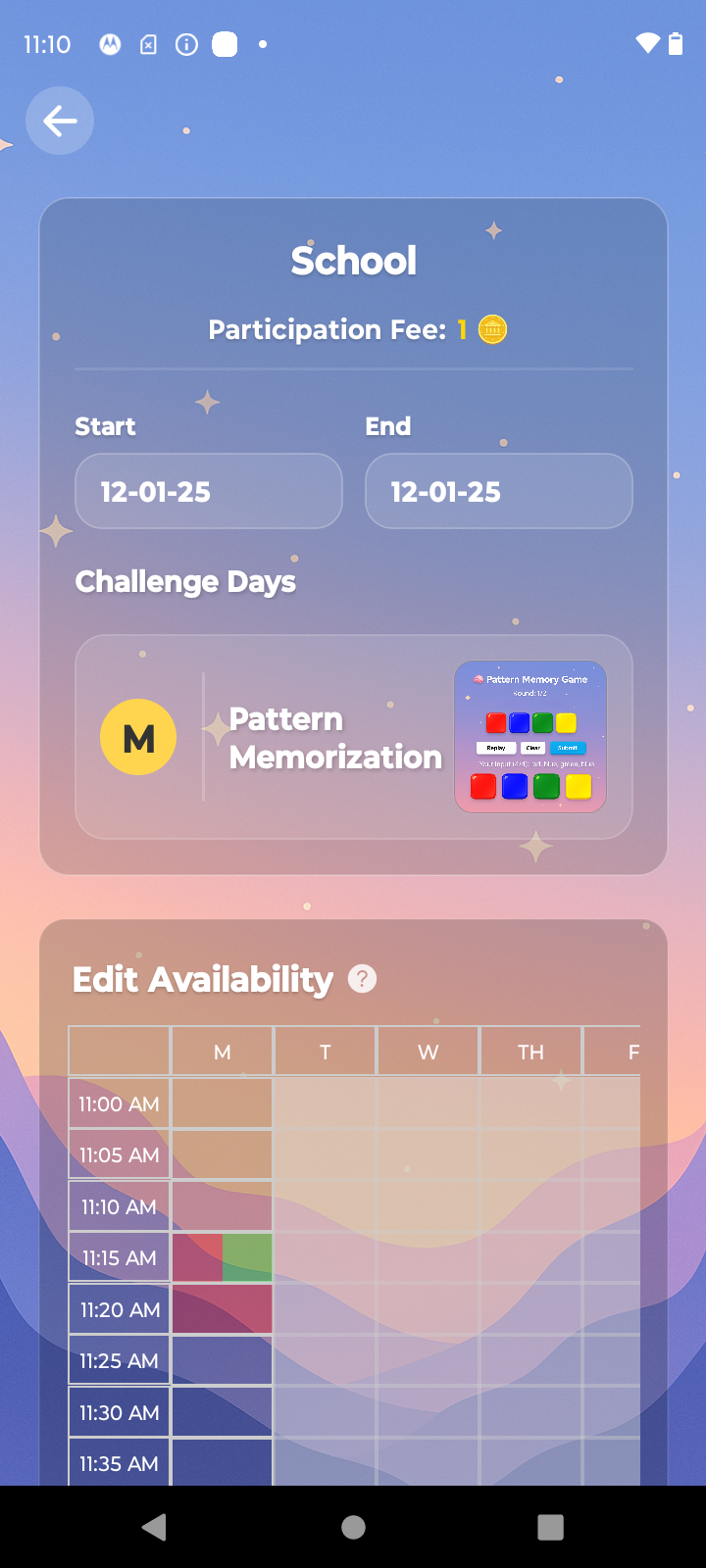
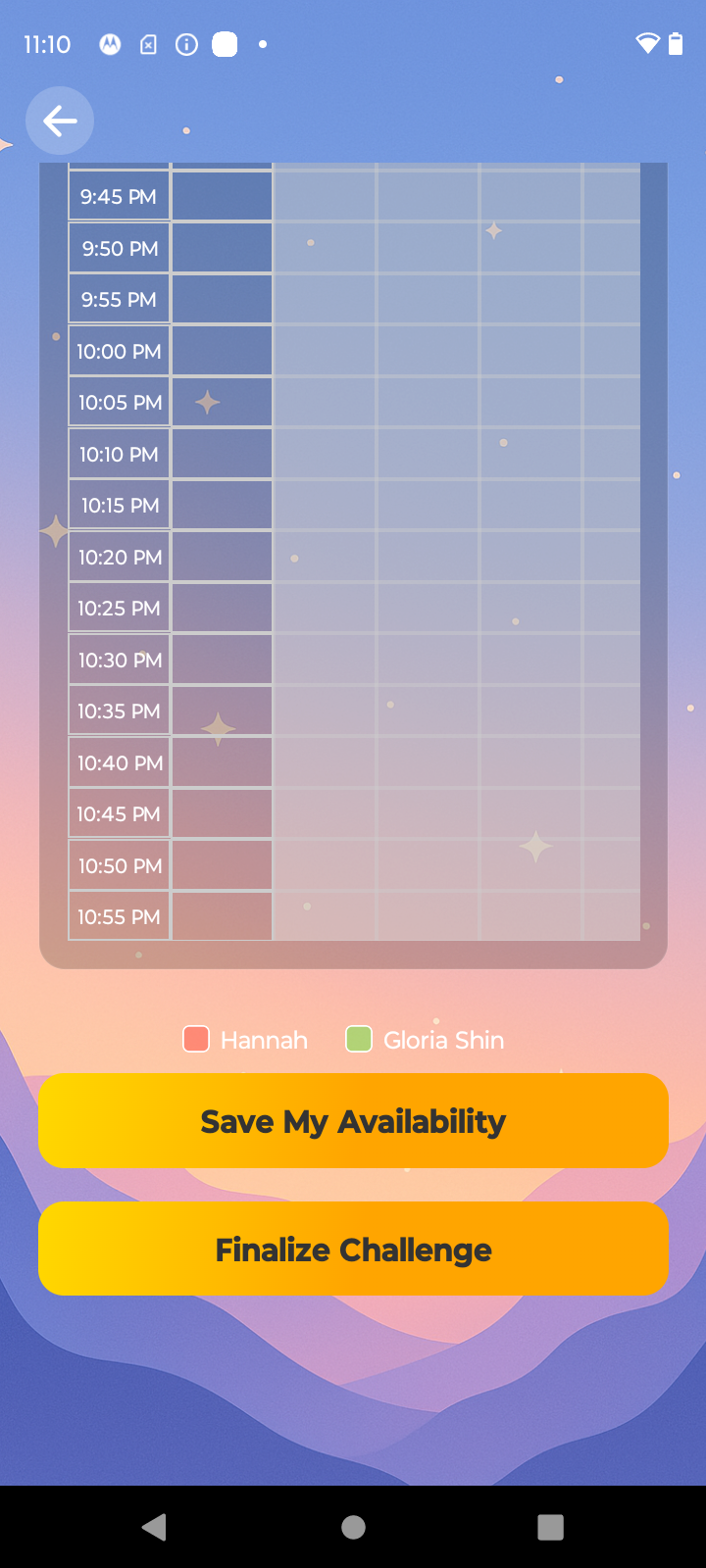
After hitting "finalize challenge," you will be navigated to the challenge schedule page where you can see everyone's scheduled alarms for each day of the challenge, as well as the game scheduled for each day. Each challenge member will need to hit the "set my alarms" button to actually schedule the alarms on their device. At this point, all you have to do is wake up and join the challenge when your alarms go off!
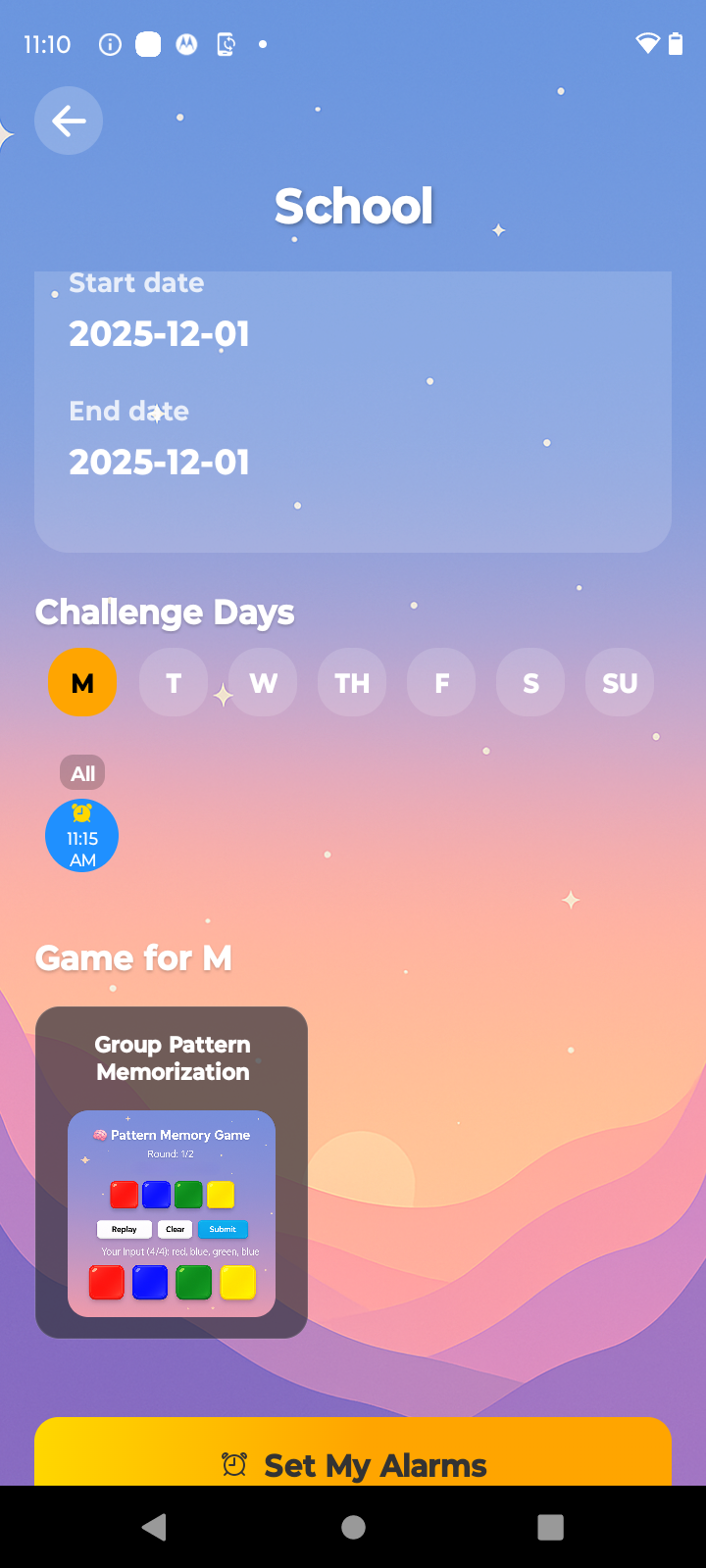
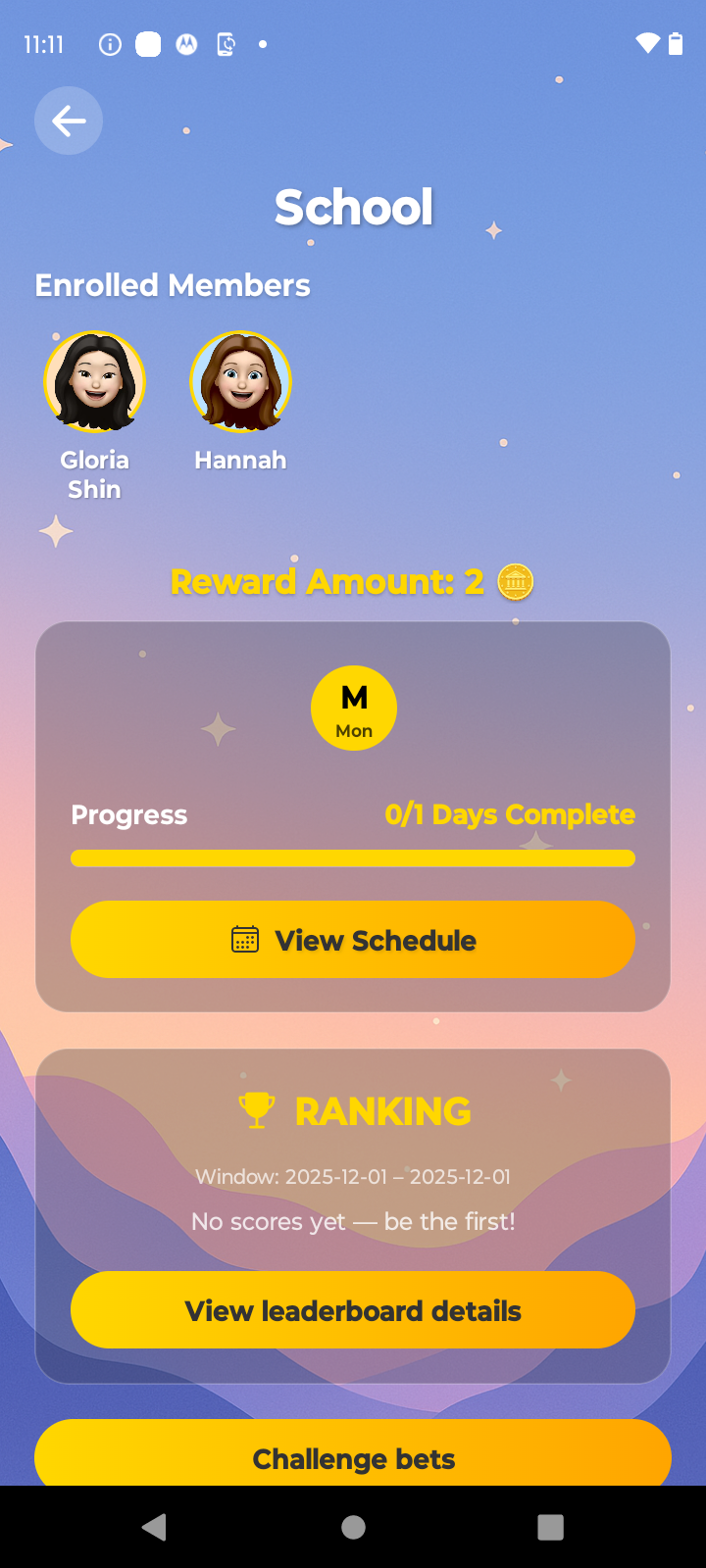
When a scheduled alarm goes off, click "start challenge" on the alarm screen and you will be taken to the scheduled game for that day. Play the game, check out your score, and then you will be navigated to the challenge details page where you can see the updated challenge leaderboard.

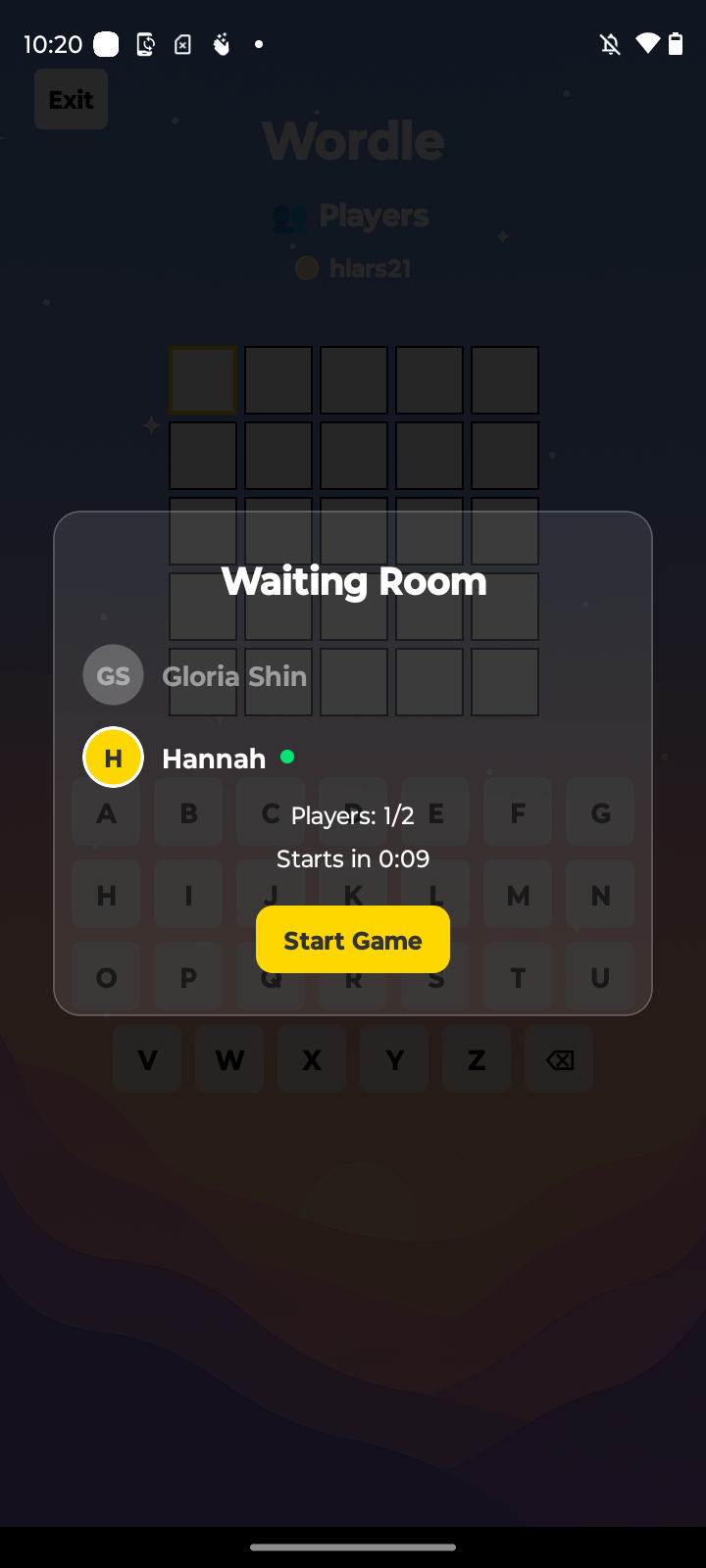
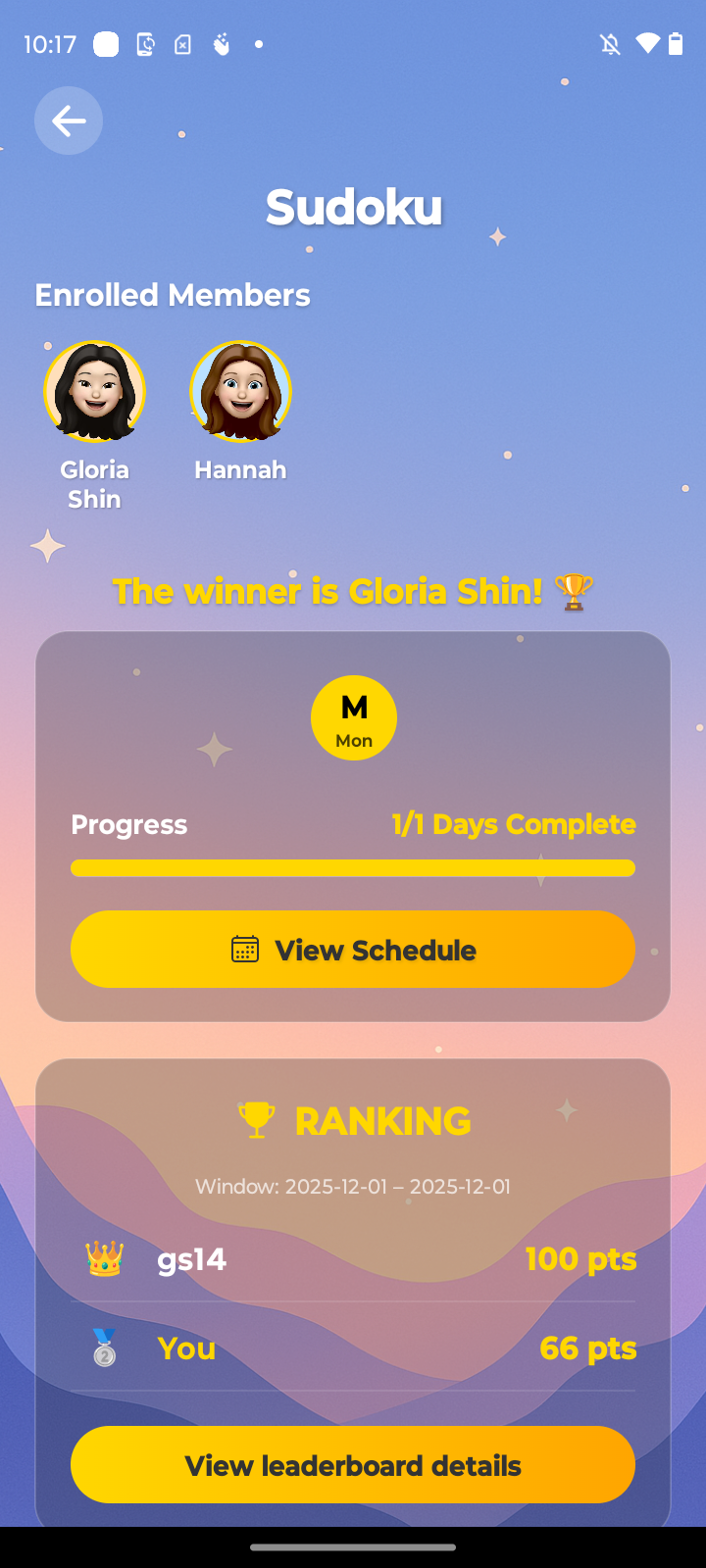
Continue this process of joining the game from your alarm each day of the challenge. Once the challenge end date is reached, the winner will be decided as the person at the top of the leaderboard, and they can collect their reward if a participation fee was set.
